
This feature is rolling out gradually, so you may not see it in the app yet.
What it does
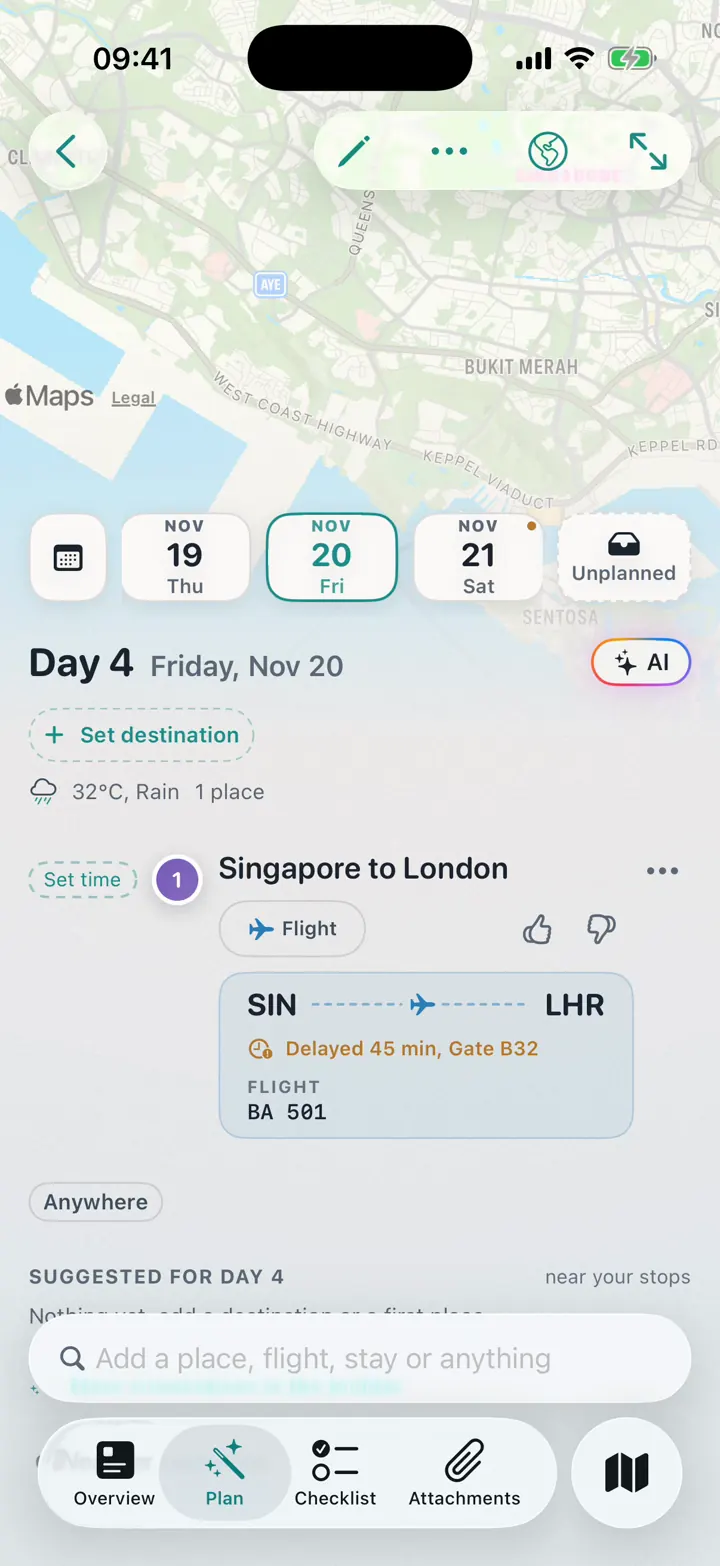
Add a flight to a trip and Journie keeps an eye on it. From three days before departure, the flight shows whether it is on time, plus the gate, terminal, any delay and, once you land, the baggage belt.
Status shows on the flight in your plan, on its details and on the Next up card in trip mode. Each time is shown in that airport's local time, and a changed time shows next to the old one, struck through.
Live status comes with Explorer and Globetrotter.
When it helps
Heading to the airport
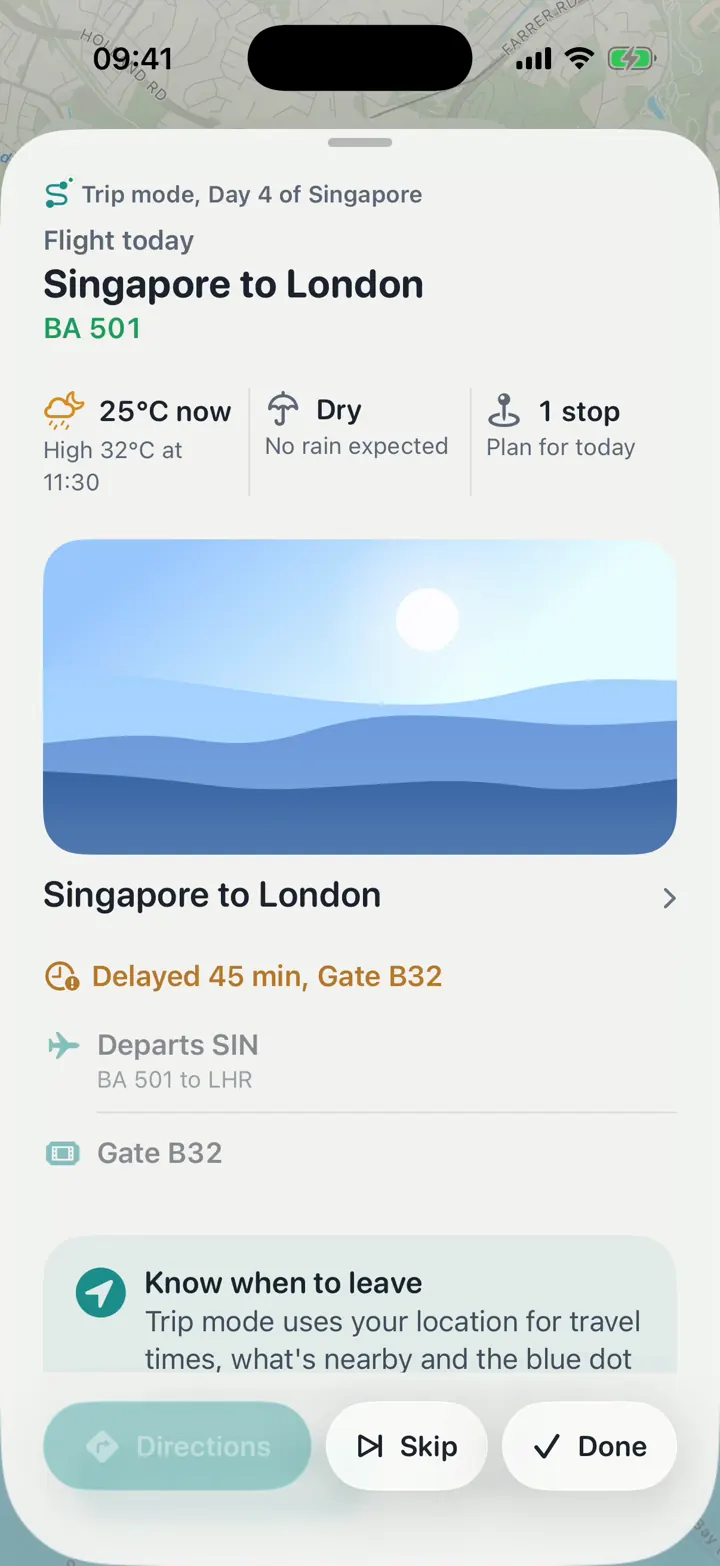
Trip mode puts your flight on the Next up card with its status and gate, so a delay or a gate change is the first thing you see.
Making a connection
Add each leg as its own flight. Every leg gets its own status, so you can see whether the second flight is on time while you are still on the first.
Landing
Once the flight lands, the status turns to Landed with the baggage belt, for example Landed, Belt 7.
Patchy signal
The last status is saved on your iPhone, so the gate still shows offline, marked with when it was last seen.
How to use it
-
Add the flight
Add a flight to your trip with its flight number and a day or departure time.
-
Watch it update
Live status starts three days out. It refreshes when the flight is on screen, more often as departure gets closer, every couple of minutes in the last three hours.
-
Check it anywhere
Status shows on the flight in your plan, in its details and on the Next up card in trip mode.
Step by step
Add a flight by hand
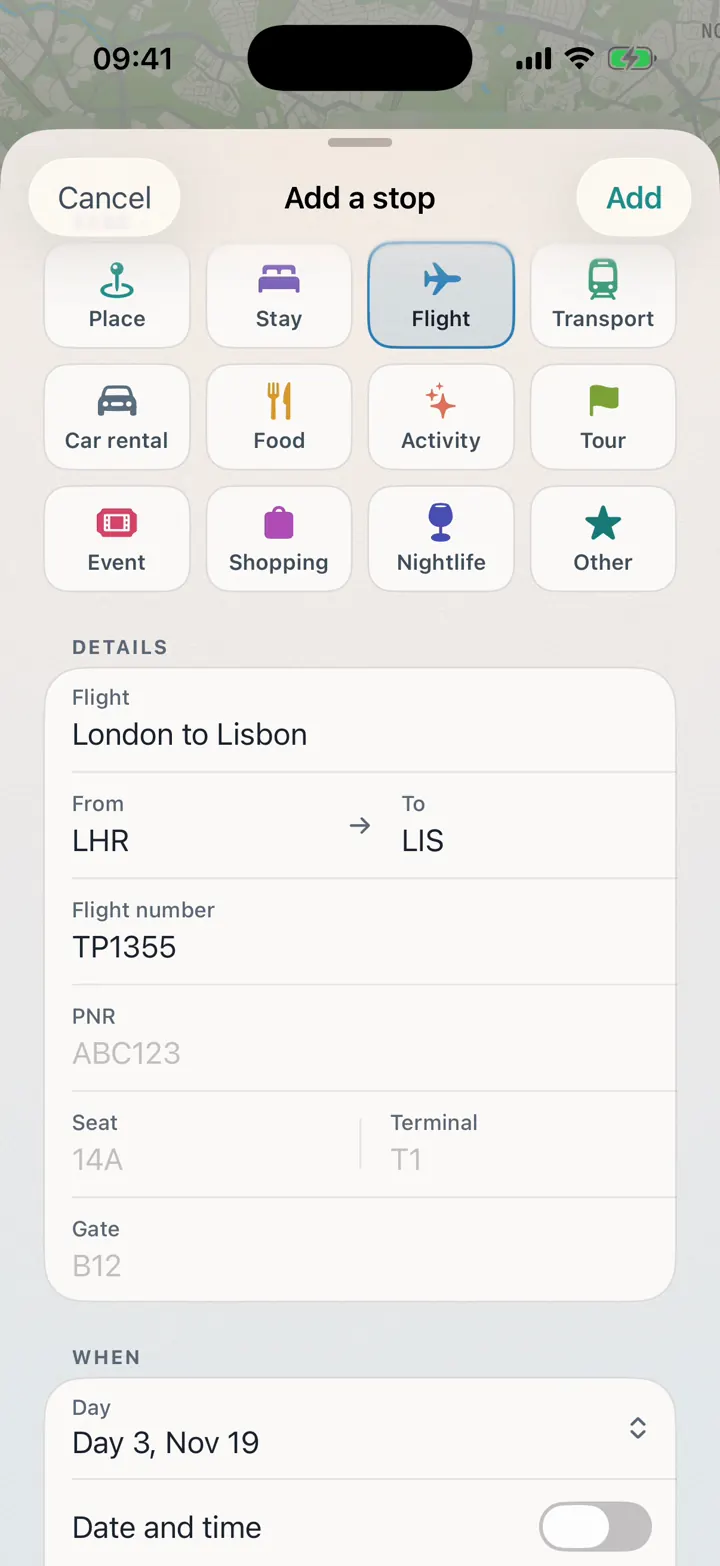
- Open the trip and go to Plan.
- Add a stop and choose Flight.
- Fill in From and To, then the Flight number, for example TP 1942.
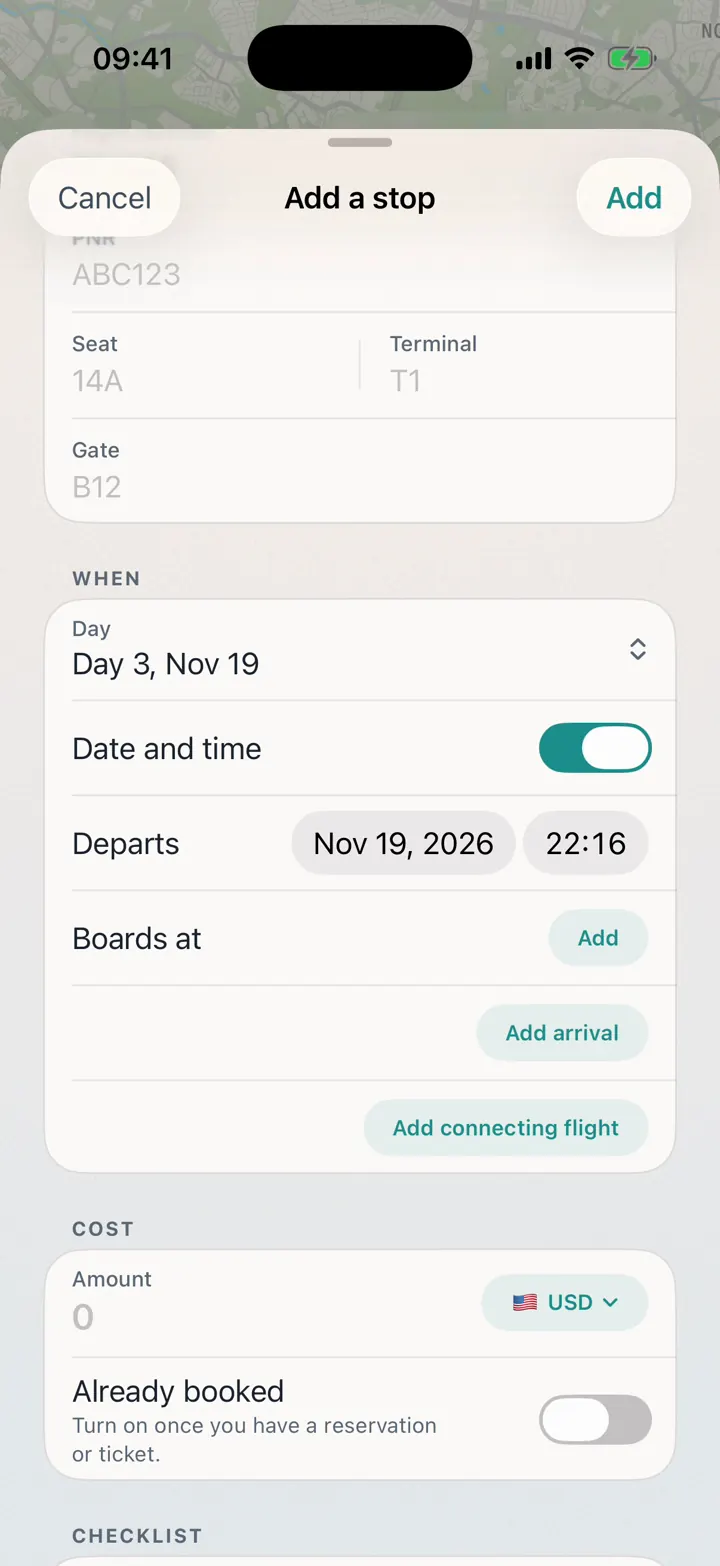
- Under When, pick the Day, or turn on Date and time and set Departs.
- Tap Add.
Live status needs a flight number and a date. PNR, Seat, Terminal and Gate are optional, for your own reference.
Add a flight from the quick add bar
- In Plan, tap the bar that says Add a place, flight, stay or anything.
- Type the flight number, for example TP 202, or the airports, for example LIS to OPO.
- Journie recognises it as a flight and fills in the number or the airports.
- Add the day or departure time and tap Add.
Add a flight from a booking
- In Plan, add a stop and tap Import a booking at the top, or pick it from the trip's More menu.
- Pick the booking PDF, a screenshot or a saved email.
- Check the flight Journie found and tap Add to plan.
The booking is read on your iPhone. The flight number and times come across, so live status works without retyping anything.
Add a connecting flight
- While adding or editing the first flight, tap Add connecting flight.
- Journie saves this flight and opens the next leg.
- Fill in the second flight's number and departure time, then tap Add.
Both legs show together in your plan, and each one has its own status.
Check the status on the day
- Open the trip. In trip mode, the Next up card shows the flight with its status and gate.
- Tap the flight to open its details: the times at both airports, the terminal, gate and, after landing, the belt.
- To refresh now, tap the Updated line at the bottom of the card.
From a day before departure, the flight refreshes on its own while it is on screen in your plan. Before that, open the flight to get the latest.
Follow the flight on a tracker
- Open the flight's details.
- Tap Track flight to open the flight on a live flight tracker in your browser.
Track flight is on every flight, on every plan, even when live status is not available.
In the app
Tips
- Type a flight number like TP 1942 into the quick add bar to start a flight with the number filled in.
- Put the departure airport code in From, for example LHR. When one flight number flies several legs, Journie uses it to pick yours.
- Tap the Updated line on the flight's card to refresh it straight away.
- Every flight keeps a Track flight link that opens it on a live flight tracker.
Troubleshooting
My flight has no status at all
Check the Flight number field. Journie needs an airline code and number, like TP 1942 or BA 117. Spaces, hyphens and capitals don't matter.
Only the Track flight link shows
Give the flight a day or a departure time. Live status needs to know which day you fly. If it still shows only the link, live status may not have reached your account yet.
It says Live status starts on a later date
Airlines publish gates and times a few days before departure, so live status opens three days out. Check back then.
It says Get live status with Explorer
You are on the free Traveller plan. Live status comes with Explorer and Globetrotter. Track flight still works on every plan.
It says This month's live lookups are used
Your plan's allowance for this month is used. It resets next month, and Track flight keeps working in the meantime.
The time at the bottom says Last seen, in amber
Journie couldn't refresh, often because you are offline. What you see is the last saved status. Tap the line to try again once you have signal.
It says This isn't available any more
No flight with that number was found on that day. Check the number and the date against your booking. A flight that isn't found doesn't use up your allowance.
It says You've reached today's limit
There is a daily limit on new lookups. Flights you already looked up keep showing their saved status. Try again later.
It says Sign in to use this
Live status needs a signed-in Journie account. Sign in, then open the flight again.
The status is for a different leg of my flight
Some flight numbers fly several legs. Put your departure airport code in From, for example LHR, and Journie picks the leg that leaves from there.
Limits and availability
- Plan
- Explorer and Globetrotter. Track flight is on every plan.
- Monthly allowance
- Explorer covers 20 flights a month, Globetrotter 60. Each flight and date counts once.
- When
- From three days before departure until a day after.
- Offline
- The last status is saved on your iPhone and shown with when it was last seen. New updates need a connection.
- Account
- Needs a signed-in Journie account.
- Alerts
- No status notifications yet. Live Activities, widgets and Apple Watch show the gate and terminal you entered, not live status.
- iPhone
- iOS 18 or later.
Questions
When does live flight status start?
Three days before departure, and it keeps going until a day after. It refreshes more often as the flight gets closer.
Which plan includes flight status?
Live flight status is part of Explorer and Globetrotter. On the free Traveller plan, every flight still has a Track flight link.
Does it send flight alerts?
Not yet. Status refreshes when you look at the flight in the app, so open the trip to see the latest gate, delay and baggage belt.
Does checking the same flight again use up my allowance?
No. The monthly allowance counts each flight and date once, however often you check it. A flight that can't be found doesn't count either.